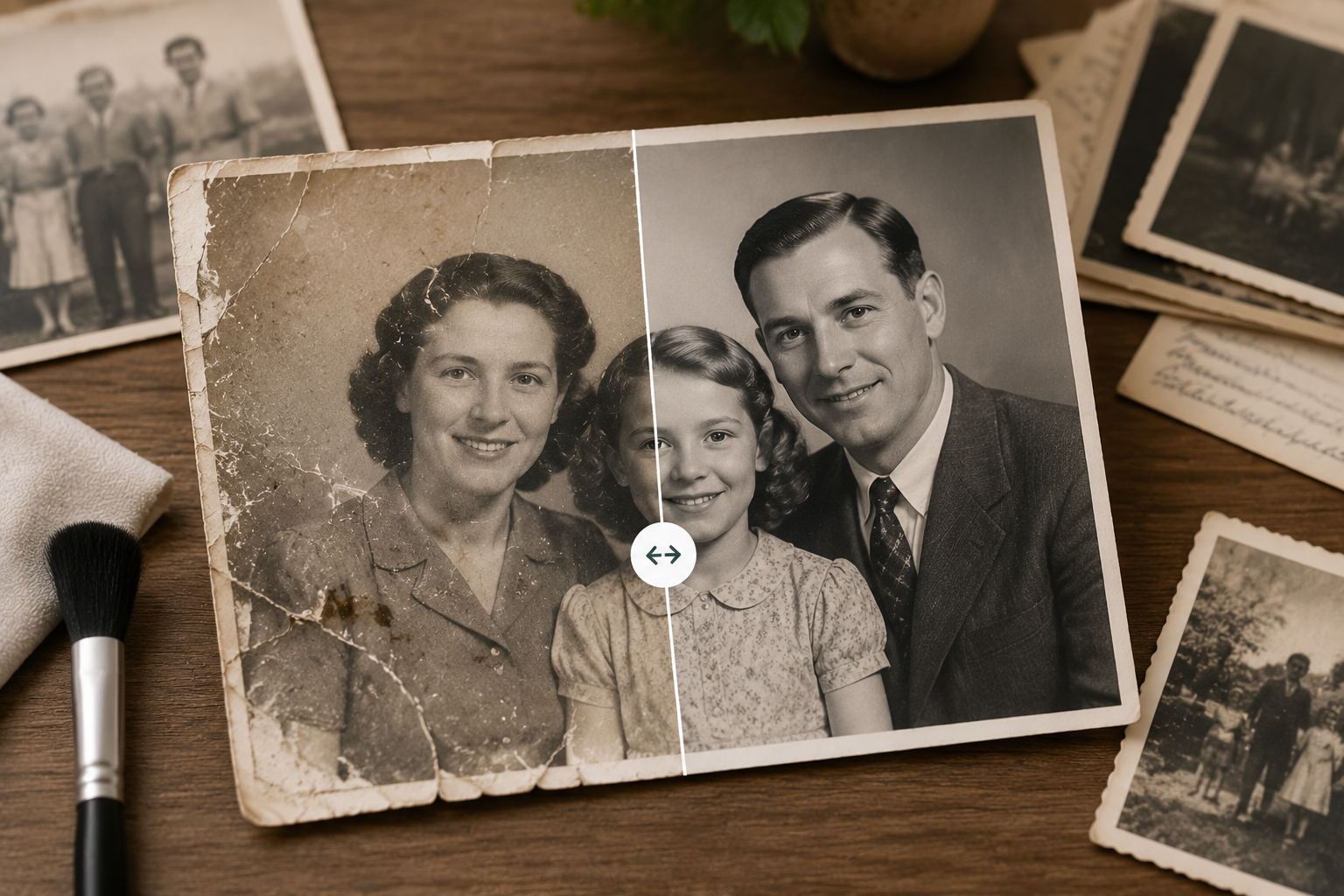
Old family photos are more than paper and ink. They hold birthdays, weddings, reunions, and everyday moments that cannot be recreated. Over decades, prints fade, colors shift, scratches appear, and faces become harder to see — but AI photo restoration can often bring those memories back.
This guide walks you through how to restore old family photos online with FamPortrait, from preparing your scan to saving and sharing the finished image.
Common problems with old family photos
Before you upload, identify what you want to fix:
| Problem | What you may notice |
|---|---|
| Fading | Washed-out colors, low contrast |
| Yellow or sepia cast | Entire image looks aged |
| Scratches and dust | Lines, spots, or crease marks |
| Blur | Soft faces, lost detail |
| Black and white only | No color information left |
Different issues need different treatment. FamPortrait's old photo restoration tool handles fading, damage, blur, and optional colorization in one workflow.
Step 1: Prepare the best possible source file
The quality of your restoration depends heavily on what you upload.
If you have the physical print
- Scan it with a flatbed scanner at 300 DPI or higher when possible
- If scanning is not an option, photograph the print in bright, even daylight
- Lay the photo flat on a neutral surface
- Avoid glare from windows or overhead lights
- Do not use flash directly on glossy prints
If you have a digital copy already
- Use the largest file size available
- Avoid screenshots of screenshots — go back to the original scan if you can
- Skip social-media downloads when possible; platforms compress images heavily
Step 2: Upload to FamPortrait
- Open Photo Restoration on FamPortrait
- Upload your old family photo (PNG, JPG, or HEIC)
- Choose your restoration options — repair damage, improve clarity, and colorize if the image is black and white
- Review the before-and-after preview
- Download the restored version when you are satisfied
Online restoration is faster than learning desktop software, and you do not need to install anything.
Step 3: Choose restore vs. colorize
Restore only — Best when the photo already has color but looks faded, scratched, or blurry. The goal is to recover detail and natural tone without changing the era of the image.
Restore + colorize — Best for black-and-white or severely faded photos where adding realistic color helps the memory feel alive again. Results vary by image quality; always review the preview before downloading.
Step 4: Preserve the original story
Good restoration should not make a 1970s photo look like it was taken yesterday with a smartphone. The aim is to:
- Make faces clearer and easier to recognize
- Reduce damage without erasing character
- Recover detail in clothing, background, and expressions
If an image still looks wrong after AI processing, try uploading a higher-quality scan or a photo taken with less glare.
Step 5: Save, back up, and share
After restoration:
- Download the HD result and save it in at least two places (computer + cloud backup)
- Keep the original scan or print — never discard the source
- Share copies with family members so everyone has the improved version
- Consider reprinting for albums or frames using the restored file
Restored photos also work well alongside new AI family portraits — for example, a restored grandparents' wedding photo next to a modern portrait of the whole family.
Tips for difficult photos
- Heavily torn photos: AI can improve many issues, but large missing sections may still need manual retouching in a photo editor afterward
- Very small faces: Higher-resolution scans help more than running the same small file twice
- Group photos: Restore once, then crop individual faces if you need portrait-sized prints
Is it safe to upload old family photos?
FamPortrait processes uploads securely. Before uploading sensitive images, review our Privacy Policy. Avoid uploading documents or images you would not trust to any online service.
Final thoughts
Restoring old family photos online does not replace the original — it gives the memory a second life. With a decent scan, the right restoration settings, and a few minutes of review, faded and damaged pictures can become clear enough to print, share, and pass down again.
Try it now on FamPortrait Photo Restoration.
Frequently asked questions
Can AI restore heavily damaged old photos?
AI can improve many common issues like fading, blur, scratches, and discoloration. Severely torn photos may still need manual editing after restoration.
Is it safe to upload old family photos?
FamPortrait processes uploads securely. Always review the platform privacy policy before uploading sensitive family images.
Should I colorize black and white family photos?
Colorization works well for many vintage photos, but restore-only is better when you want to preserve the original look. Preview both options before downloading.
Related articles
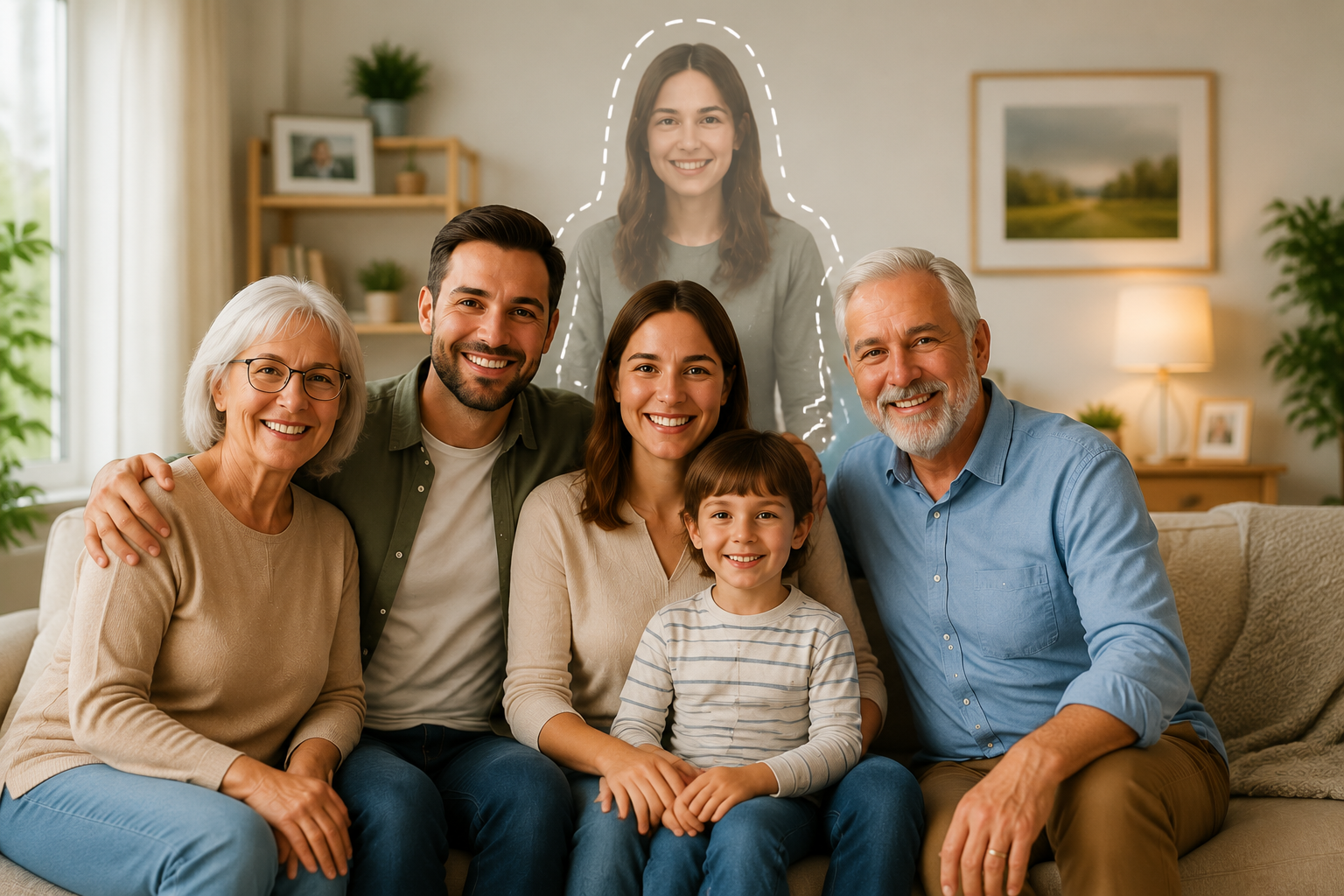
How to Add a Loved One to a Family Photo
A practical guide to adding a loved one to a family photo with AI while keeping the scene natural, respectful, and emotionally meaningful.
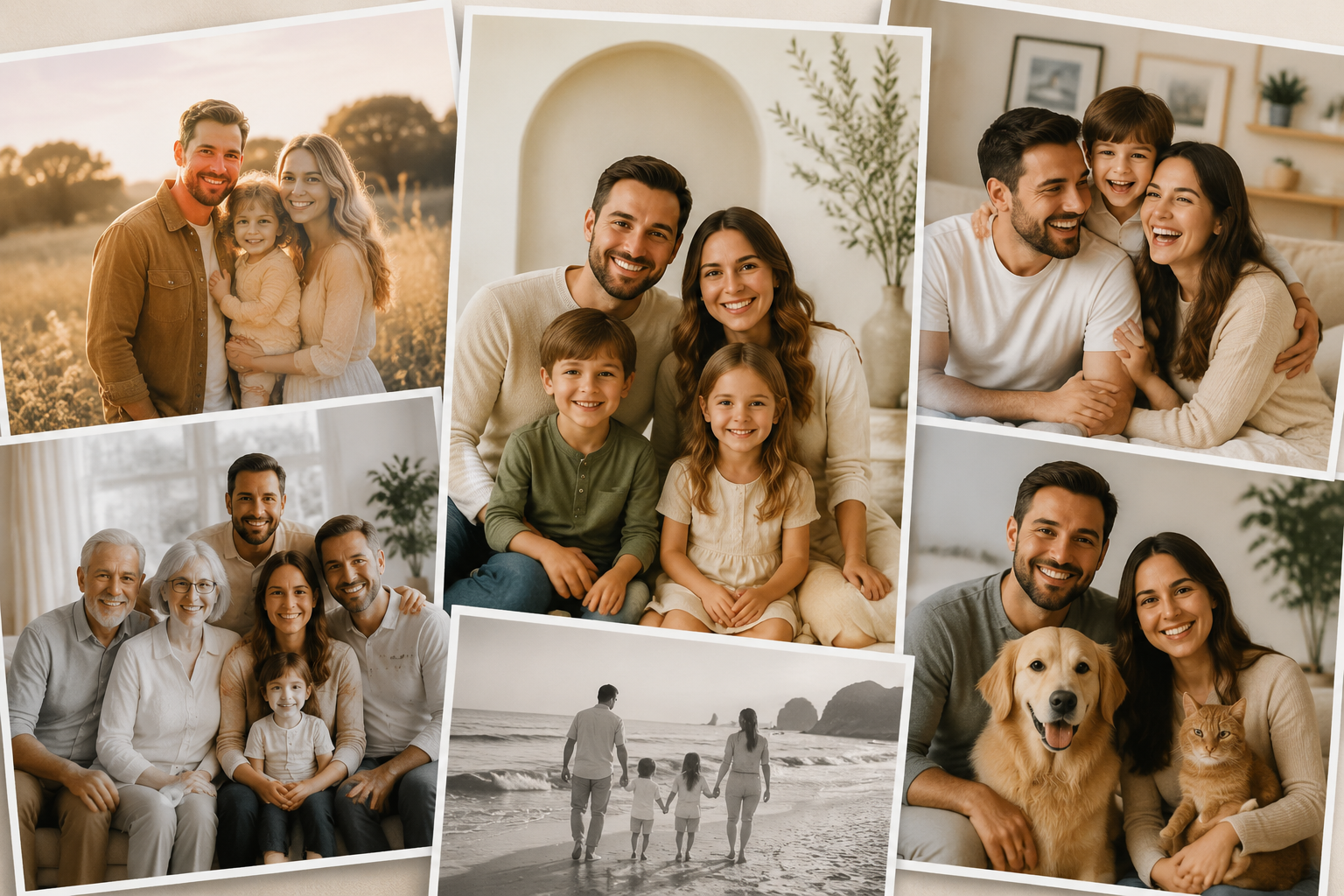
AI Family Portrait Ideas for Modern Families
Discover creative AI family portrait ideas for busy modern families, from casual selfie-based portraits to meaningful gifts and wall art.